Auto Forward Emails to Airtable with iCloud Mail
Looking for solutions to auto forward and save emails from Gmail or Outlook? We’ve got you covered too.
Gmail auto forward guide | Outlook auto forward guide
How to Automatically Forward iCloud Mail Emails to Airtable Using TaskRobin
If you use iCloud Mail as your primary inbox, you already know Apple keeps things simple and secure—but it doesn’t offer any native way to save emails into a database like Airtable. That’s where TaskRobin comes in, giving you a simple way to auto-forward iCloud emails straight into your Airtable base.
With TaskRobin, forwarding an email to your custom TaskRobin address automatically saves the sender, subject, message body, timestamp, and all attachments as a new Airtable record. No manual copy-pasting, no missed attachments—just a clean, structured record of every important email.
Why Choose TaskRobin for Email Integration with Airtable?
- Time-saving automation: Forward emails to Airtable with zero manual effort.
- Full data capture: Store all email details, including attachments and metadata.
- Enhanced collaboration: Centralize your communication for easy access and teamwork.
- Works with iCloud Mail rules: Automatically forward matching emails based on sender, subject, or keywords.
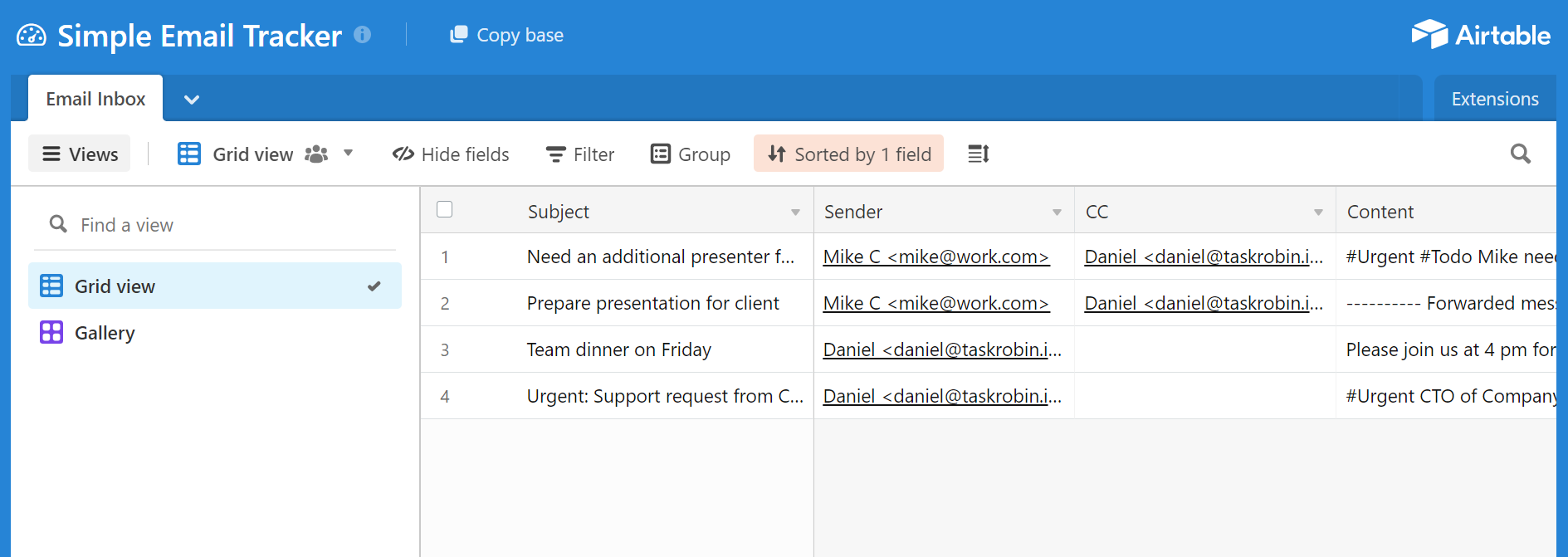
How to Set Up Automatic Email Forwarding with iCloud Mail
Let’s walk through the step-by-step process to automatically forward your iCloud Mail emails to Airtable via TaskRobin.
Step 1: Set up TaskRobin and Link Airtable
Start by signing up for a TaskRobin trial. Connect your Airtable account and choose the base where you want the emails to be saved. You can also add our Airtable extension directly to your Airtable base.
During setup, you’ll be given a custom TaskRobin forwarding address, such as airtable@taskrobin.io. Every email forwarded to this address is automatically saved as a new record in your Airtable base.
Step 2: Add TaskRobin as a Forwarding Address in iCloud Mail
Note: iCloud Mail forwarding and rules can only be configured from iCloud.com, not from the Mail app on iPhone, iPad, or Mac.
- Go to iCloud.com/mail and sign in with your Apple ID.
- Click the gear icon in the bottom-left corner and select Preferences.
- Under the General tab, check the box “Forward my email to” and enter your TaskRobin forwarding address (e.g.,
airtable@taskrobin.io). - (Optional) Check “Delete messages after forwarding” if you don’t want a copy to remain in your iCloud inbox.
- Click Done to save your changes.
That’s it—every email that lands in your iCloud inbox will now be forwarded to TaskRobin and saved to Airtable automatically.
Automate Email Forwarding Based on Rules
If you’d rather forward only specific emails (e.g., from certain senders or containing certain keywords), use iCloud Mail Rules instead of the blanket forwarding option:
- On iCloud.com/mail, click the gear icon and select Rules.
- Click Add a Rule.
- Set your condition—for example, “If a message is from” a specific sender, or “If the subject contains” a keyword like “invoice.”
- For the action, select Forward to and enter your TaskRobin forwarding address.
- Click Done to save the rule.
You can create multiple rules to route different types of emails to different TaskRobin forwarding addresses, letting you organize incoming emails into separate Airtable bases based on project, sender, or topic.
Manage all your integrations from the TaskRobin dashboard.
Conclusion
With TaskRobin’s Airtable integration, iCloud Mail users can finally close the gap between their inbox and their database. Whether you forward every incoming email or set up targeted rules for high-priority messages, TaskRobin makes it effortless to capture, organize, and centralize your email data in Airtable.
Ready to transform how you manage emails? Sign up for TaskRobin today and automate your email workflow.