Save and Manage Email Receipts in Airtable
Are your email receipts piling up in your inbox, making it hard to separate business expenses from personal ones? Whether you’re a business owner or a busy professional, keeping track of receipts can be overwhelming.
Fortunately, there’s a better way to organize and manage email receipts using Airtable—an incredibly flexible tool for project management and data organization. But to automate the process of saving email receipts into Airtable, you need TaskRobin, a seamless email integration service that saves emails (and attachments) directly into your Airtable base.
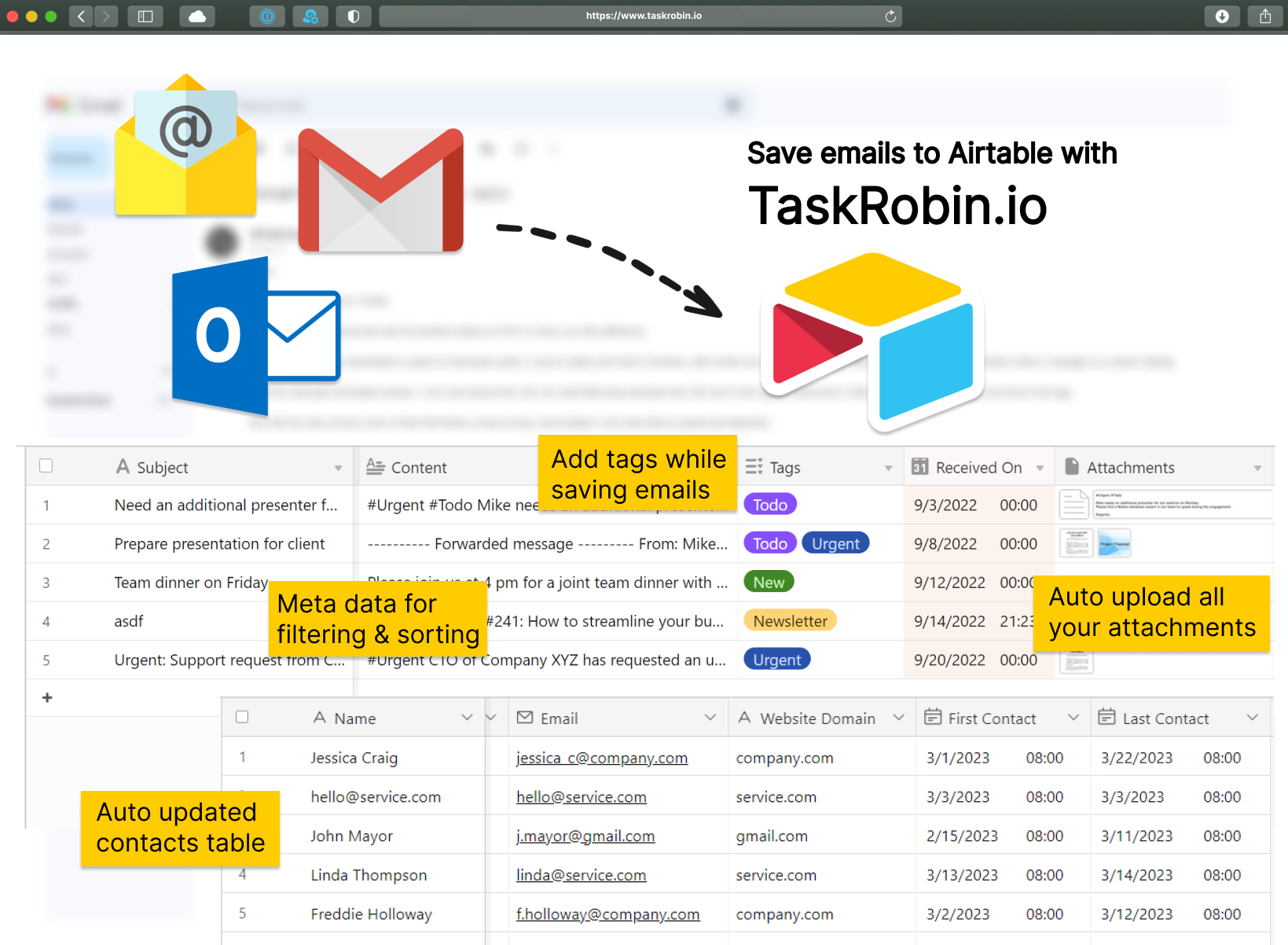
Automatically Save and Organize Email Receipts in Airtable
Using TaskRobin, you can easily forward email receipts to Airtable and categorize them for expense tracking. Airtable’s relational database structure makes it perfect for setting up a robust email receipt organization system.
How Receipt Tracking in Airtable Works
Once connected to your email, TaskRobin automatically saves email receipts to your Airtable base. You can set up fields to assign spending categories like Work, Transport, Shopping, Healthcare, etc. Additionally, you can add currency fields to attach monetary values to each receipt to maintain accurate records of your spending.
Tagging receipts as “Work Expenses” allows you to track their claim status from “To Be Submitted” to “Pending Payment” and finally to “Expense Completed.” This ensures you never miss out on reimbursable expenses again!
Detailed Spending Categories and Airtable Views
Airtable’s powerful view system allows you to see all saved receipts for each spending category. For instance, you can create a Gallery View or Grid View filtered by the “Transport” category to see how much you’ve spent on taxis or public transport. You can use Airtable’s “Summary” bar to instantly see total and average spending values for each category.
There’s also a calendar view that lets you track your receipts by month, giving you a clear overview of when and how much you’ve spent.
How to Automatically Save Emails to Airtable
Now, you’re probably wondering how to save emails to Airtable automatically. TaskRobin makes this easy with two options:
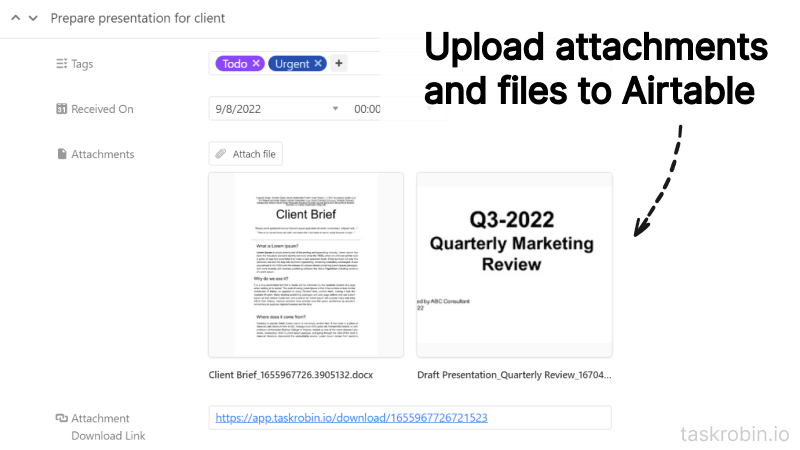
- Manual Forwarding: Forward email receipts manually to your TaskRobin private forwarding address, which will save them in your Airtable base with all attachments, dates, subject lines, and email content.
- Automatic Forwarding: Set up an auto-forward rule with your email provider (e.g., Gmail or Outlook) to automatically forward receipts to TaskRobin. This eliminates the need for manual forwarding and ensures your receipts are captured instantly.
Learn how to set up Gmail rules for auto-forwarding in our Airtable Gmail auto-forwarding guide.
Why Use Airtable with TaskRobin for Receipt Tracking?
Combining Airtable with TaskRobin creates a powerful and automated receipt management system. It not only saves you time but also ensures accuracy in your expense tracking. With Airtable’s easy-to-use interface and TaskRobin’s seamless automation, you can have your receipt management system running in just minutes.
Ready to start managing your email receipts effortlessly? Create an Airtable account and sign up for TaskRobin’s free trial today to simplify your financial workflows and never lose track of an important receipt again!